





How To Create and Use an EC Markets Demo Account


Table of Contents
Before you start trading with real money on the line, it’s always a good idea to get familiar with your trading software and practice any trading strategies on an EC Markets demo account. A demo account is an account type offered by most brokers that enables traders to make trades entirely with artificial currency, so that there are no real losses (or profit) from trading outcomes. As a result, this is an essential tool that both experienced and new traders use to test new strategies before jumping into the real market.
How to Create an EC Markets Demo Account
Step 1: Register a free EC Markets account
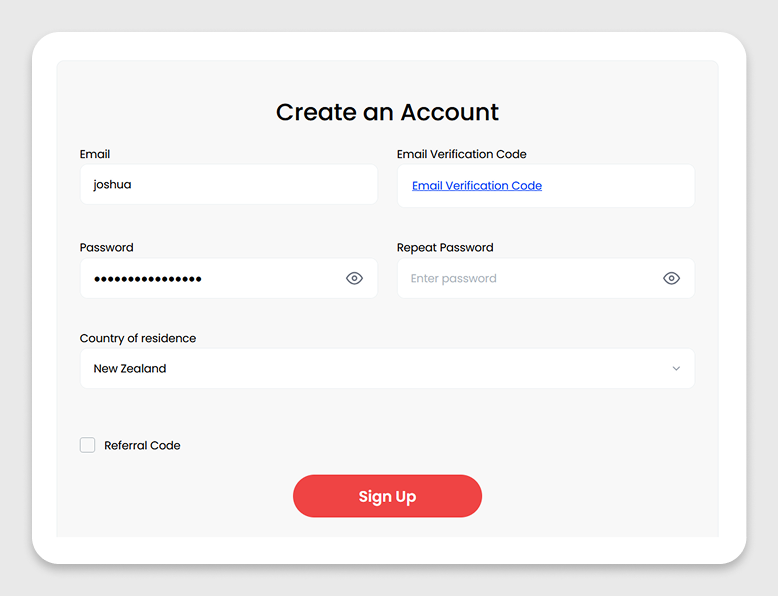
Before you can create an EC Markets demo account, you’ll need to register a free EC Markets account if you don’t have one already. It’s important to distinguish between a trading account and a broker account. A broker account is the account that you register with your broker (like EC Markets, for example). First, users must have a broker account, and then use their broker account to open a demo trading account.
If you already have an EC Markets account, skip to step two. If not, then to register your account, go to EC Markets Registration Page, and then fill in the required information.
Step 2: Navigate to the EC Markets Demo Account Section
Go directly to the Accounts section of your user terminal. There, you will see a tab that says “Demo Accounts”. Click it and then click the red button in the middle of the screen that says “Add Account”.

Step 3: Choose Account Type and Trading Platform
Next, you’ll need to choose your account type and trading platform. For most customers, EC Markets has two account types, Standard and ECN. Standard accounts have no commission per trade, but often have slightly higher spreads, while ECN accounts have generally tighter spreads but carry a per trade commission.
In addition to choosing your account type, you’ll also be able to choose your trading platform. MT4 (which is shorthand for MetaTrader 4) is the classic choice for traders, but MT5 (short for MetaTrader 5) is more modern software and is being increasingly adopted around the world. For EC Markets clients, access to MT4 and MT5 varies by region, with some regions only having access to MT4, and others only having access to MT5. If you’re in a region with only access to one trading platform, you’ll only have one selection available.

After you’ve chosen your account type and trading platform, you’ll need to set your trading password. A trading password is a unique password that a trader uses to sign into a specific trading account on the trading software. Please note that this is a different password than the password you set for your EC Markets account. Don’t forget your trading password, as you’ll need it later.
Once you’ve created your trading password and saved it, your EC Markets demo account will have been created. You should see a window with the details of your new demo trading account like the image below.

There are several important parts of the trading account displayed here that you should take note of.
Trading Account Number
The Trading Account Number is displayed at the top and is a series of numbers. This number is like your “username” that you will use to log into the trading software later. In the image above, the trading account number is “100258002”.
Trading Account Server
The Trading Account Server is the specific server your trading account has been assigned to. In order to make sure no server gets too busy and affects trading, EC Markets (as well as other brokers) operate many different trading servers. You will only be able to log into your trading account if you choose the correct trading account server. In the image above, the trading account server is “ECMarkets-Demo”.
Trading Account Balance
The trading account balance shows how much money you have in this trading account. For EC Markets, the balance in your trading account is a separate balance from your EC Markets account wallet. For a demo account like this, $10,000 virtual funds are automatically added to the account. When you practice trading, you may find that you need to add more virtual funds, and this can be done here at any time.
How to Use an EC Markets Demo Account
Once you have created an EC Markets demo trading account, the next step is to actually use the account for simulated trading. To do this, you’ll need to download the trading software and then use that trading software to log into the demo account.
Step 1: Download Correct Trading Software
First, navigate to the downloads section of the user terminal. There, you will see the various trading environments EC Markets offers traders. It’s important that you find the right one for the type of trading account you have opened. This means if you opened an MT4 trading account, you must download a version of MetaTrader 4. Similarly, if you opened an MT5 account, you’ll need to download the version of MetaTrader 5.

Additionally, it’s essential when choosing which version of the trading software to download to select the correct version according to your demo trading account, which can be found by matching the server name to the download option. For example, in the image above the server for the demo trading account is “ECMarkets-Demo”. Therefore, a user must choose the matching option on the downloads page, which would be the option that says “Demo / Live02 / Live03 / Live05 / Live06”. You can tell this is the right one because it says “Demo” in the name. This can be confusing, but it’s the same process you’ll need to go through when opening a real account, so it’s good to learn it upfront.
Step 2: Install Trading Software
Once you have chosen the correct version to download, an installation package will be downloaded on your computer. Open it and follow the prompts to install your trading software.
The first time the software runs, it will go through a series of steps that will allow you to log into your EC Markets demo account.
First, choose the correct server that aligns with the details of your trading account. In our example, it’s “ECMarkets-Demo”.

After choosing your server, you’ll see the screen to log into your trading account. Choose the radio button “Existing trading account”, and then enter the Trading Account Number and Trading Account Password that we set earlier. Then click “Finish”.

Once you’ve successfully logged in, you’ll see a “Trade” tab appear at the bottom of the trading software. When you click it, you’ll see your trading account information like balance, equity, and free margin.

Step 3: Make your first trade
Opening an order on your EC Markets Demo Account
Once you’re logged into your trading account on your trading software, you can now make a trade. The trades you make here, and the resulting profit or loss, will show up in your EC Markets Demo Trading Account details page.

To make a trade, choose a product on the “Market Watch” window, double-click it, and then in the window that pops up, enter your trade details. There are a few essential terms to learn and understand before making your first trade.
Understanding the basic trading terms
Volume is the size of your order. The smaller the volume, the smaller your order size will be. For EC Markets, the smallest volume you can choose with MT4 and MT5 is 0.01, which relates to a different real amount depending on the product. With EUR/USD, a volume of 0.01 represents a position size of 1,000 EUR. For XAU/USD, a volume of 0.01 represents one ounce of gold.
Stop Loss is a tool you can use to limit potential losses if a trade moves against you. You set a price level at which you want the position to close automatically if the market reaches it.
Take Profit is a tool you can use to automatically close a trade when the market reaches a price level you have chosen. This allows you to lock in a profit without needing to manually close the position.
Buy by Market is the button you click to issue a buy order, also known as going long. If you have a buy order, you’re expecting the price of the asset to rise over time. With a buy order, you make money when the price goes up.
Sell by Market is the button you click to issue a sell order, also known as going short. If you place a sell order, you’re expecting the price of the asset to decrease over time. With a sell order, you make money when the price goes down.
Closing your first demo trading account order
After you’ve made a trade, you’ll see the details of it appear as a single row in the order window. The details here will show you important information like the time you created the order, the type (meaning a buy or sell order), the size (meaning the volume), the symbol (like XAUUSD for gold), the price when you opened the order, and your current profit or loss since opening the order.
When you’ve reached a point where you’re happy with the profit and don’t think it will continue to rise, or want to cut your losses when the order has turned against you, you can close your order by right-clicking the order details and clicking “Close Order”.

Once you’ve closed your trade, you’ll see the profit or loss from that trade reflected in your account balance. Consider what you did well and what you could improve, and make a plan for your next trade. Continue to study and improve. There’s a lot to learn, so be sure to check out EC Academy to guide you along your trading journey.